> For the complete documentation index, see [llms.txt](https://docs.hamina.com/hamina/llms.txt). Markdown versions of documentation pages are available by appending `.md` to page URLs; this page is available as [Markdown](https://docs.hamina.com/hamina/other/sales-and-subscriptions.md).
# Sales and Subscriptions
Learn how to buy and manage subscriptions for Hamina products.
Hamina products can be purchased three ways:
* Self-serve, in the Hamina Network Planner web app. See [#quotes-and-purchase-orders](#quotes-and-purchase-orders "mention").
* Sales-assisted, for enterprises. See [#sales-assisted-purchasing](#sales-assisted-purchasing "mention").
* Through a channel partner:. See [#channel-purchasing](#channel-purchasing "mention").
## Quotes and Purchase Orders
Hamina Network Planner features a built-in quote generation tool, allowing for near-instant quote generation.
### Generating a Quote
1. [Create a Hamina account](https://app.hamina.com/), or log into your existing account. *Note: Be sure to create your account on the correct instance that you and your team need to use. Hamina accounts and purchases do not cross between the EU and US instances.*
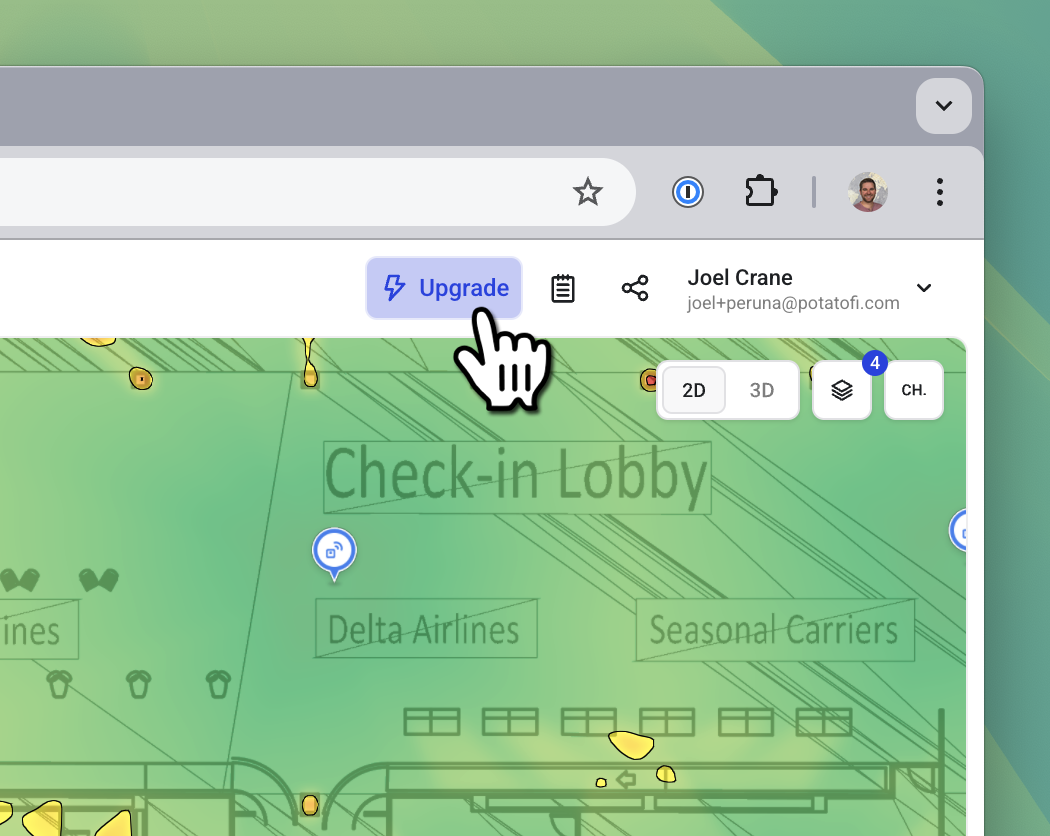
2. In Hamina Network Planner, either click the **Upgrade** button, or navigate to the **Subscriptions** page.
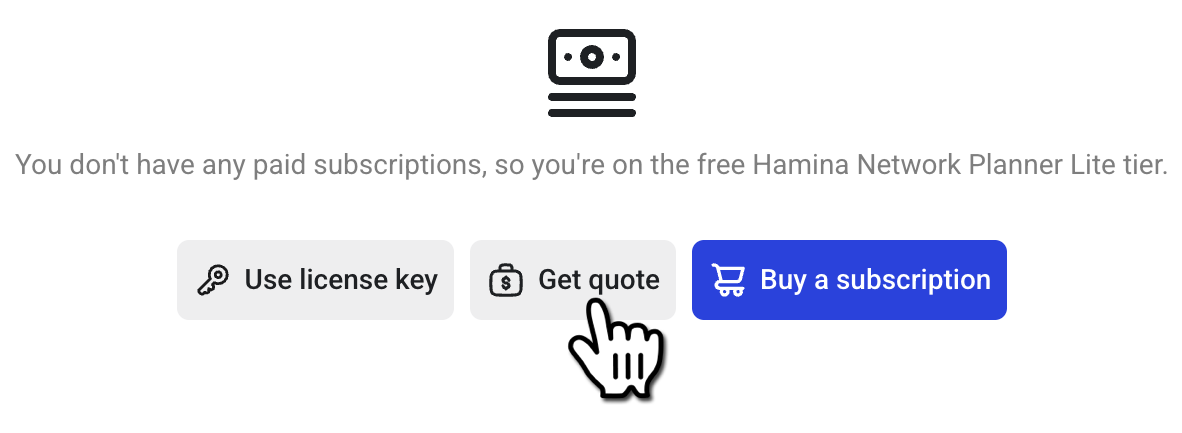
3. Click on the **Get Quote** button.
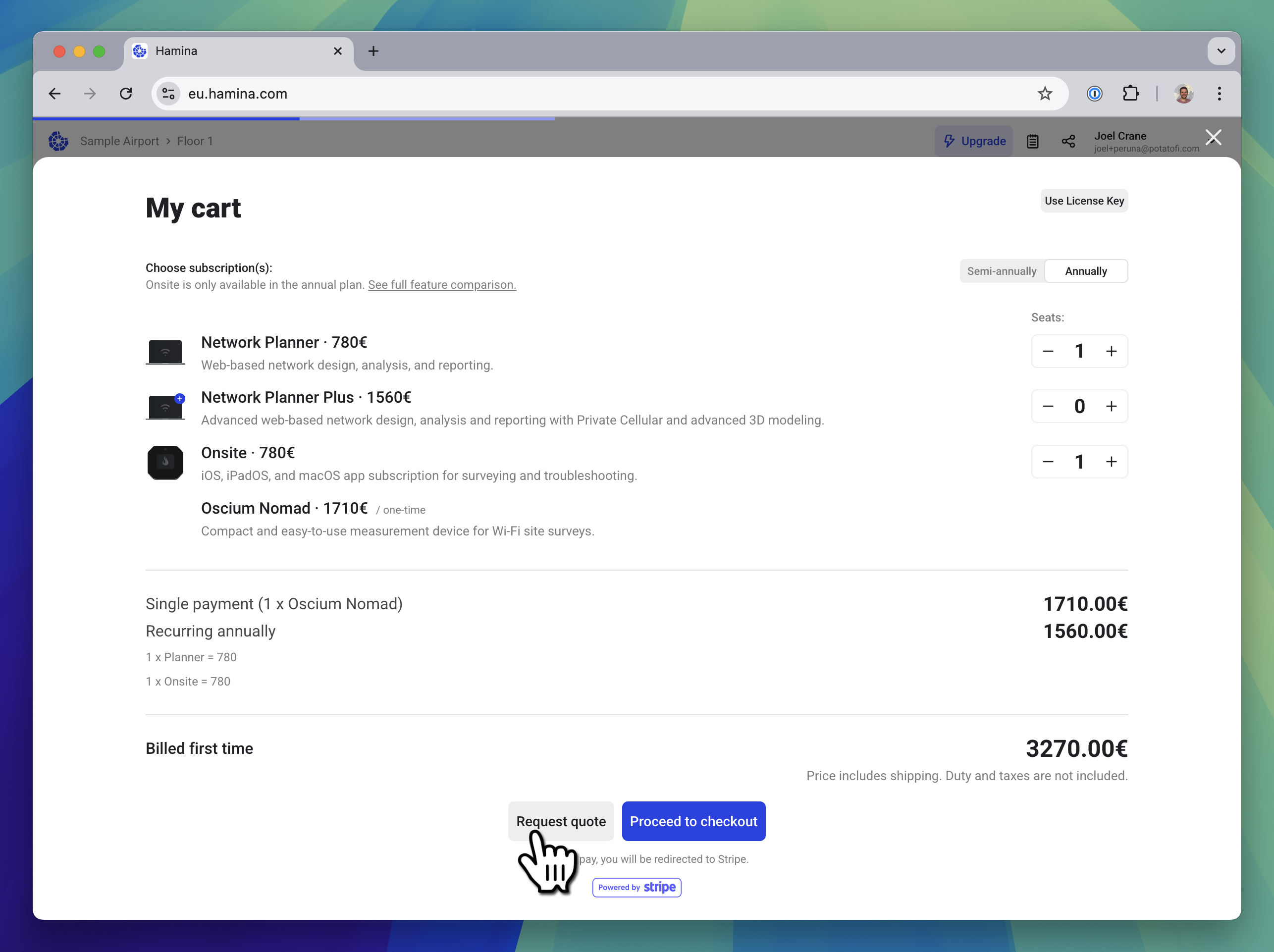
4. Click the **+** buttons to add products, and click the **Request Quote** button.
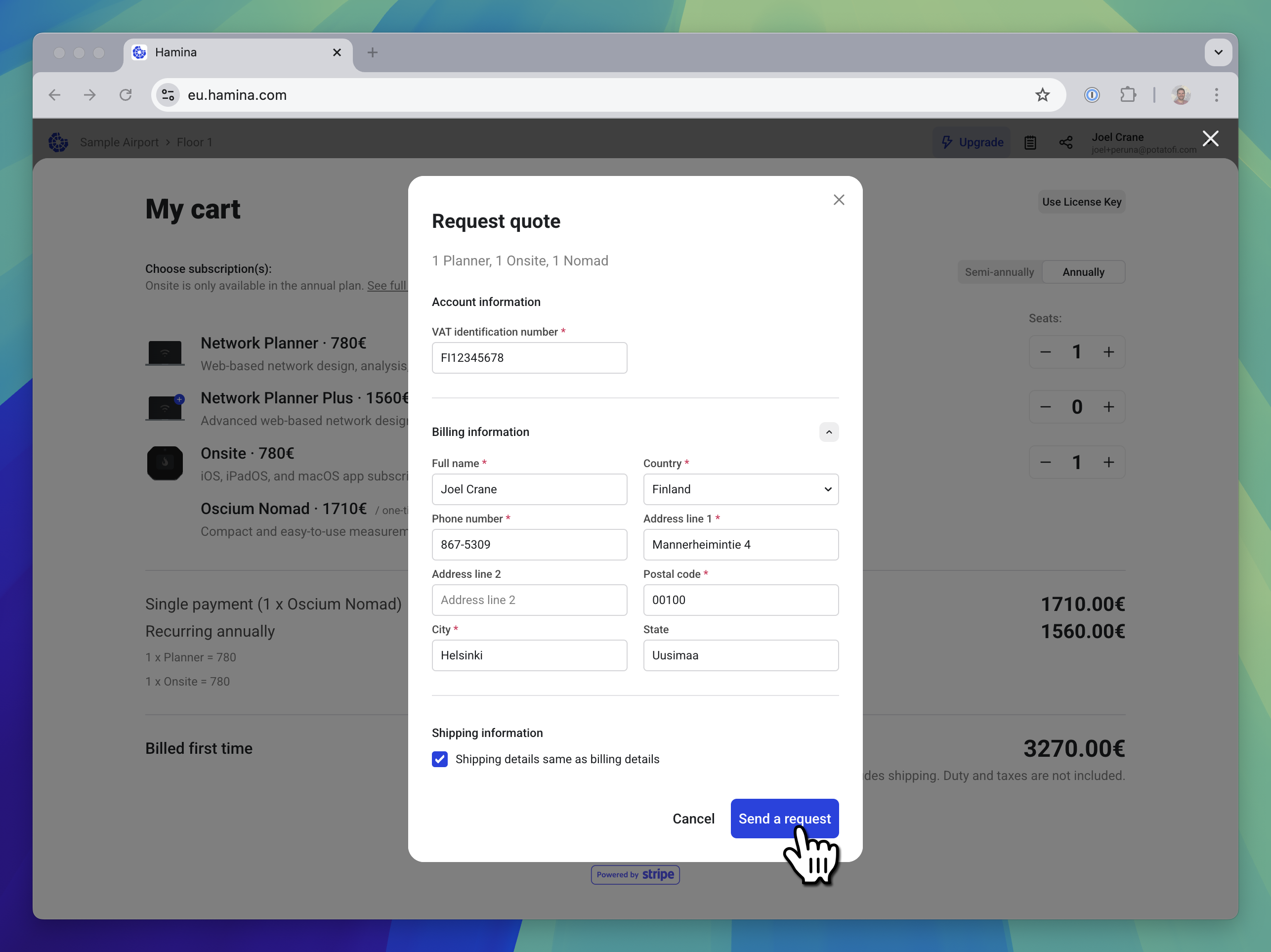
5. Add or review your billing and shipping information. Double-check for accuracy, and click the **Send a Request** button.
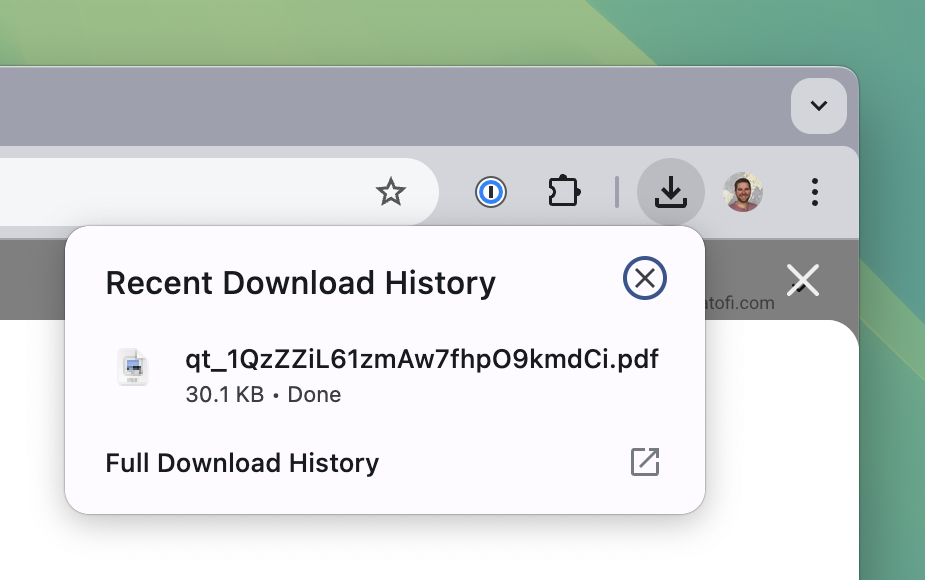
6. After a moment, the quote will finish generating and will automatically download as a PDF file.
### Managing Quotes
Once you have generated a quote, you'll find it in the **Quotes** section on the **Subscriptions** page.
#### Adding a Purchase Order Number
In the **Purchase order #** column, hover the mouse over the cell and the **Edit** button will appear. Click it to enter a custom purchase order number. The purchase order number will then appear on the invoice, when it is sent.
#### Accepting and Purchasing a Quote
To accept the quote and complete the purchase, select the elipsis menu on the quote row and select **Purchase**. From there, you can pay by credit card, or request to pay by invoice instead.
## Sales-Assisted Purchasing
For enterprise deals, our sales team can prepare and manage the quote directly. To get started, [contact the Hamina sales team](https://www.hamina.com/contact-sales) with the products and quantities you need, and the sales team will follow up with a formal quote.
## Channel Purchasing
Hamina products are also available through our network of authorized resellers and distributors. Reach out to your preferred reseller directly to ask if they're able to supply Hamina products, or [contact the Hamina sales team](https://www.hamina.com/contact-sales).
## Shipping
{% hint style="info" %}
For orders placed with a Purchase Order, expect 1-3 days of extra processing time, compared to zero days of processing time orders placed through the Hamina website.
{% endhint %}
### Shipping from the US 🇺🇸
When shipping from the US, all hardware ships from domestic warehouses. No tariffs or customs fees will apply to shipments in the US.
Once an order is finalized, allow 48 hours for the order to process before shipping. Orders are shipped with USPS or UPS, and should arrive within 3-5 business days of being shipped.
{% hint style="danger" %}
We ship DDP (Delivered Duty Paid) wherever possible, in which case Hamina covers destination duties, and import fees. Where DDP isn't available for the destination country, shipments are sent DAP (Delivered At Place), and the customer is responsible for any duties, taxes, and import fees.
{% endhint %}
### Shipping from the EU 🇪🇺
When shipping from the EU, all hardware ships from a warehouse in Estonia.
Once an order is finalized, allow 48 hours for the order to process before shipping. Orders are shipped with DHL or FedEx, and should arrive within 3-5 business days of being shipped.
{% hint style="danger" %}
We ship DDP (Delivered Duty Paid) wherever possible, in which case Hamina covers destination duties, and import fees. Where DDP isn't available for the destination country, shipments are sent DAP (Delivered At Place), and the customer is responsible for any duties, taxes, and import fees.
{% endhint %}
## Adding Seats to a Subscription
It's possible to add additional seats to an existing subscription, allowing more users access to Hamina products while maintaining the original billing cycle. Seats that are added during the billing cycle are automatically prorated for the remainder of the billing period.
To add seats to an existing subscription:
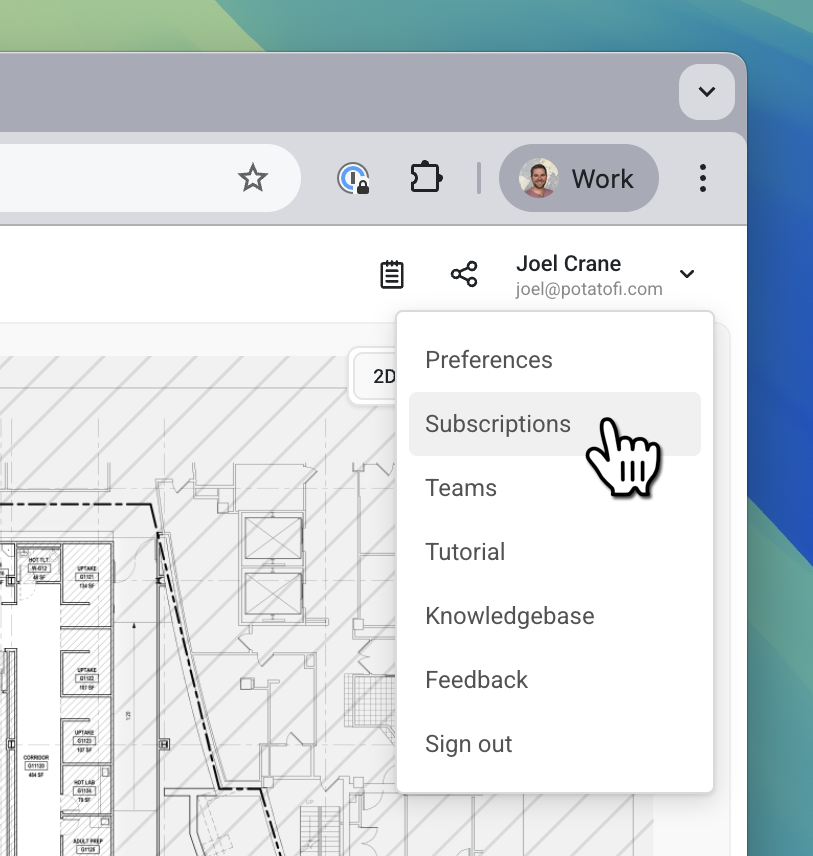
1. In the drop-down menu in the upper right, select **Subscription**.
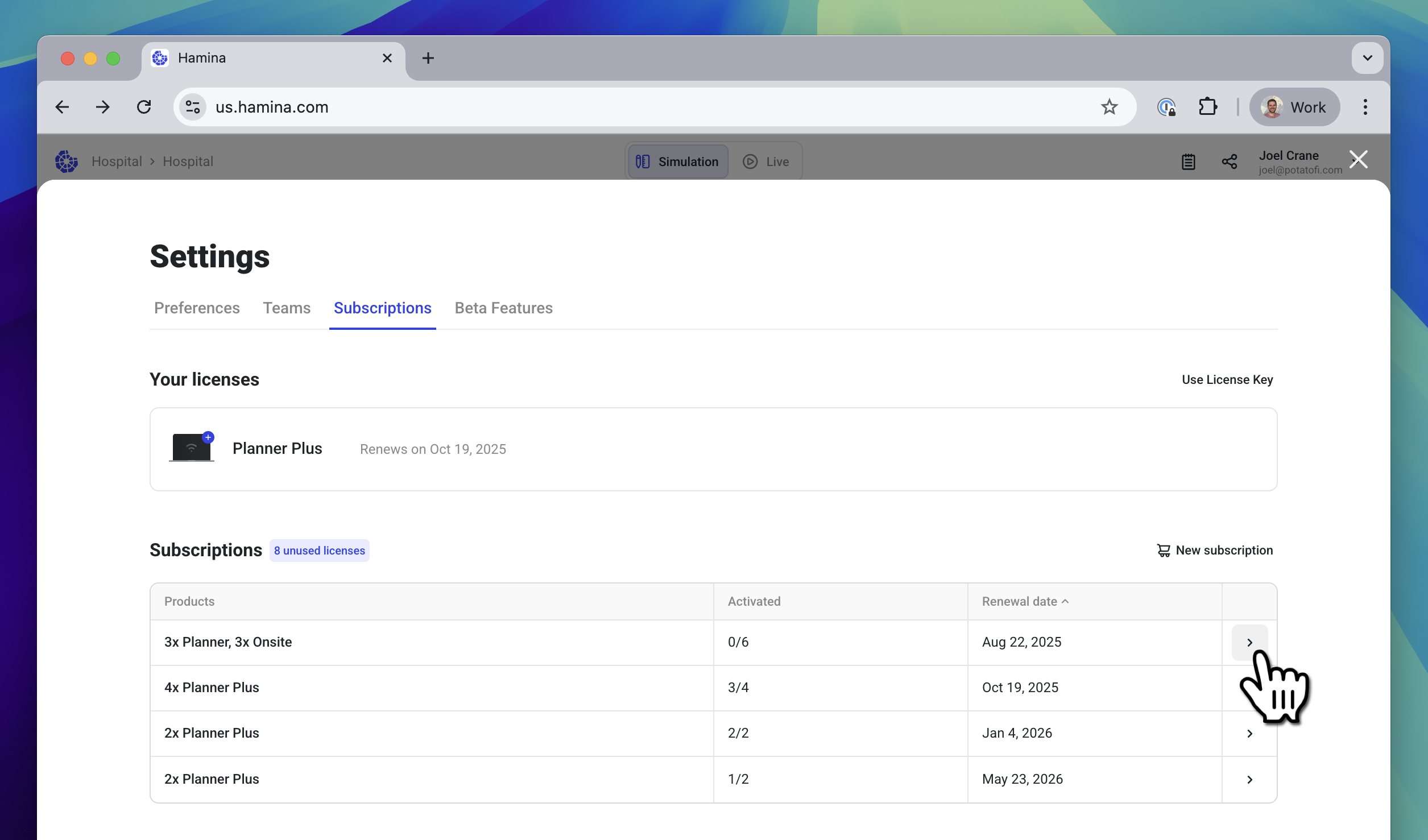
2. In the **Subscriptions** table, all of your account's active subscriptions will be listed, one per row. Find the subscription that you would like to add seats to, and click the **>** button on the right side of the table.
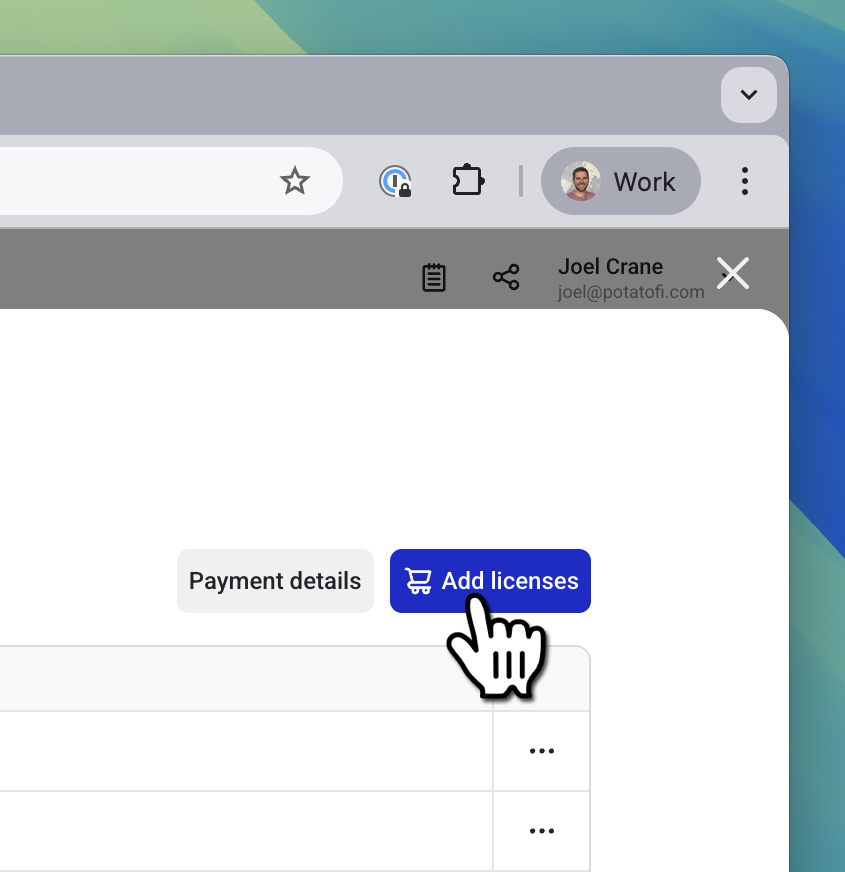
3. The **Manage subscription** view will appear. To add additional licenses, click the blue **Add licenses** button.
## Upgrading a Subscription
It's possible to upgrade a license from Hamina Network Planner to Hamina Network Planner Plus, while maintaining the original billing cycle. Seats that are upgraded during the billing cycle are automatically prorated for the remainder of the billing period.
To upgrade seats in an existing subscription:
1. In the drop-down menu in the upper right, select **Subscription**.
2. In the **Subscriptions** table, all of your account's active subscriptions will be listed. Find the subscription that you would like to upgrade a license for, and click the **>** button on the right side of the table.
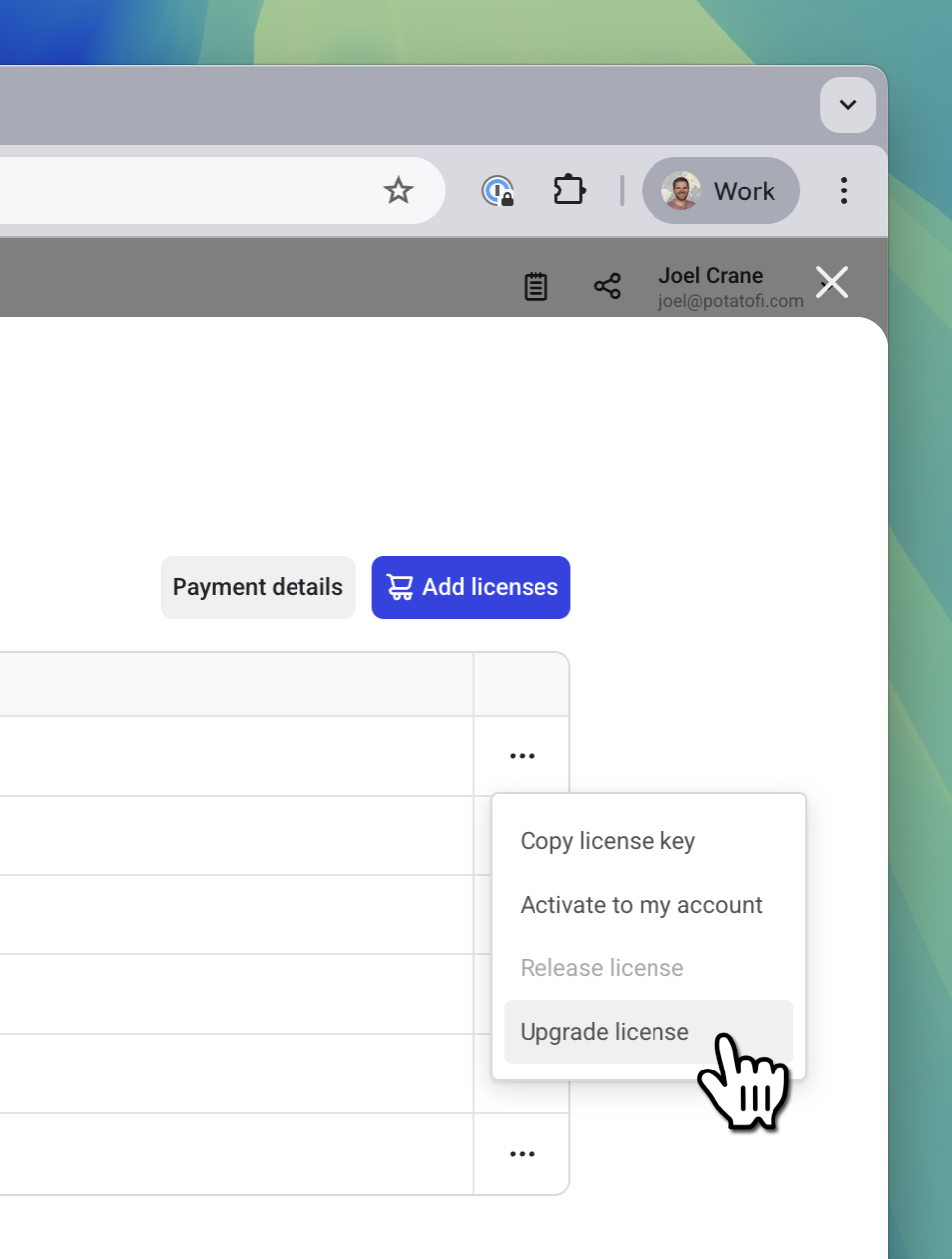
3. The **Licenses** table will list all of the products in your subscription. Find the applicable **Planner** row, and click the **...** (elipsis) button on the right side of the table, and select **Upgrade license.**
## Cancelling a Subscription
Done with wireless projects, and ready to take a break from Hamina? No problem! It's super easy to unsubscribe.
1. In the drop-down menu, click **Subscription**.
2. At the bottom of the page, click on the red **Unsubscribe** button.
{% hint style="info" %}
Note: After unsubscribing, your license(s) will be valid until the end of the subscription period.
{% endhint %}
## Updating Credit Card Details
If your subscription renewal is paid for by credit card, and you need to update or change the card on file, you can do that from within Hamina Network Planner.
1. Click on the **Account** menu in the upper right, then click **Subscriptions**.
2. The **Subscriptions page** will list all active subscriptions. In the **Subscriptions table**, click the **View >** button next to any subscription.
3. The **Manage subscription** page opens. Click the **Payment details** button in the upper right.
4. The browser tab will change to your account page at our payment providers website - stripe.com. Click on the **Add payment method** option.
5. Enter your new payment details and make sure **Use as default payment method** is ticked before clicking **Add.**
6. Optionally delete the old payment method(s) once the new one has been added.
7. Click **Return to Hamina Wireless Oy** to finish and return to Hamina.
---
# Agent Instructions
This documentation is published with GitBook. GitBook is the documentation platform designed so that both humans and AI agents can read, navigate, and reason over technical content effectively. Learn more at gitbook.com.
## Querying This Documentation
If you need additional information that is not directly available in this page, you can query the documentation by asking a question.
Perform an HTTP GET request on the following URL with the `ask` and `goal` query parameters:
```
GET https://docs.hamina.com/hamina/other/sales-and-subscriptions.md?ask=&goal=
```
`ask` is the immediate question: it should be specific, self-contained, and written in natural language.
`goal` is what the user is ultimately trying to achieve, the reason they need the answer. Sharing it helps GitBook give you a better, more relevant answer. A goal is most helpful when it describes the outcome the user wants rather than restating the question. For example, with `ask=how do I create an API token`, a goal like `automate deployments from our CI pipeline` lets GitBook tailor the answer to that use case.
The response will contain a direct answer to the question and relevant excerpts and sources from the documentation.
Use this mechanism when the answer is not explicitly present in the current page, you need clarification or additional context, or you want to retrieve related documentation sections.