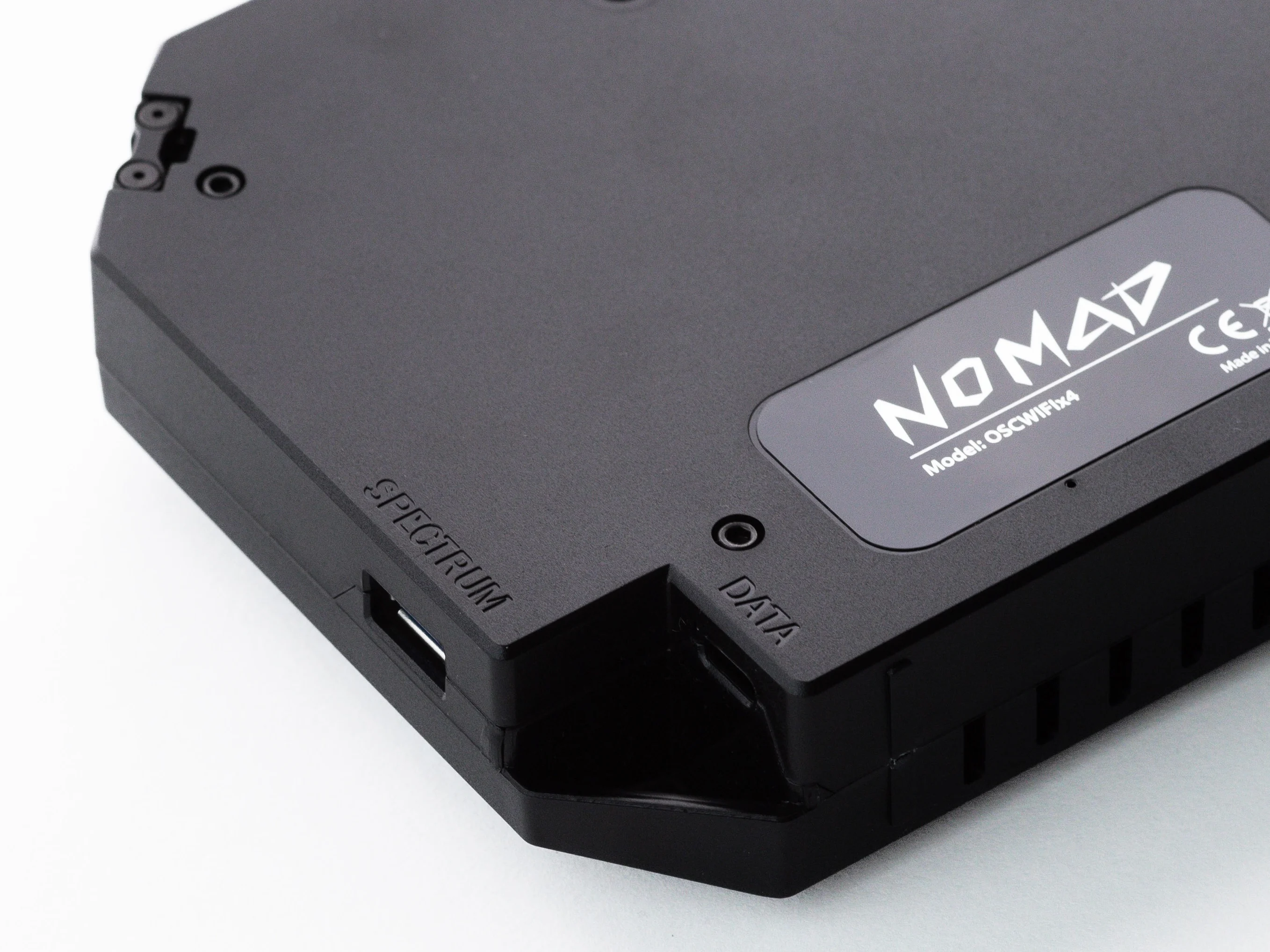
# Oscium Nomad

## Overview

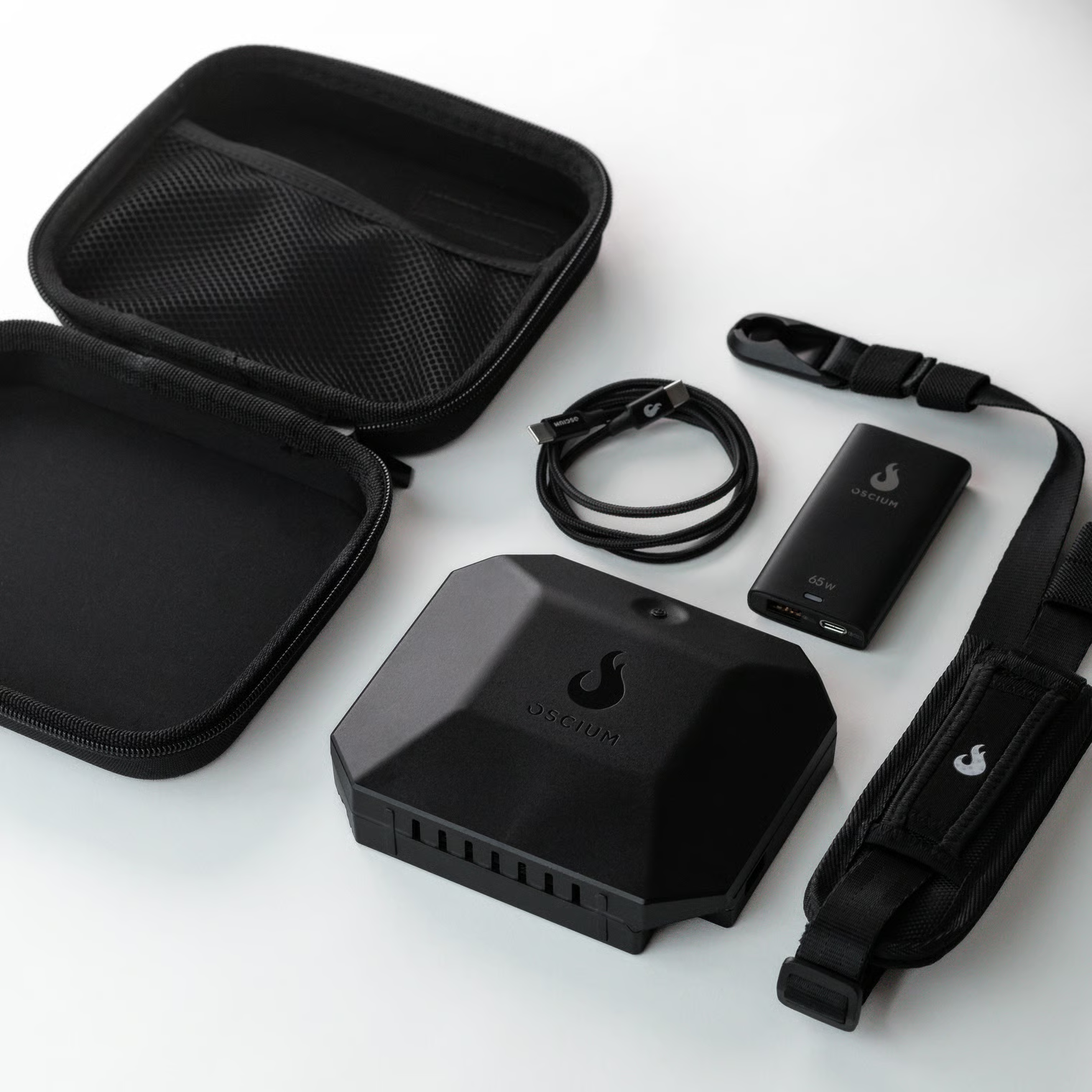
### What's Included

* Oscium Nomad
* USB PD charger (USB-C and USB-A ports)
* USB-C to USB-C cable
* USB-C to USB-A cable
* Carrying strap
* Carry strap anchors (x3)
* Carry strap shoulder pad
* Carrying case

<figure><img src="https://1547340717-files.gitbook.io/~/files/v0/b/gitbook-x-prod.appspot.com/o/spaces%2FzUQ3TfKTYBeb6nf9W8Hv%2Fuploads%2FeNkFL4mbAk08hTOjcns6%2Fnomad-kit.avif?alt=media&#x26;token=0995ae30-a736-4355-bbc1-8e0c7108b5c1" alt=""><figcaption></figcaption></figure>

## Usage

### Installing the Carry Strap

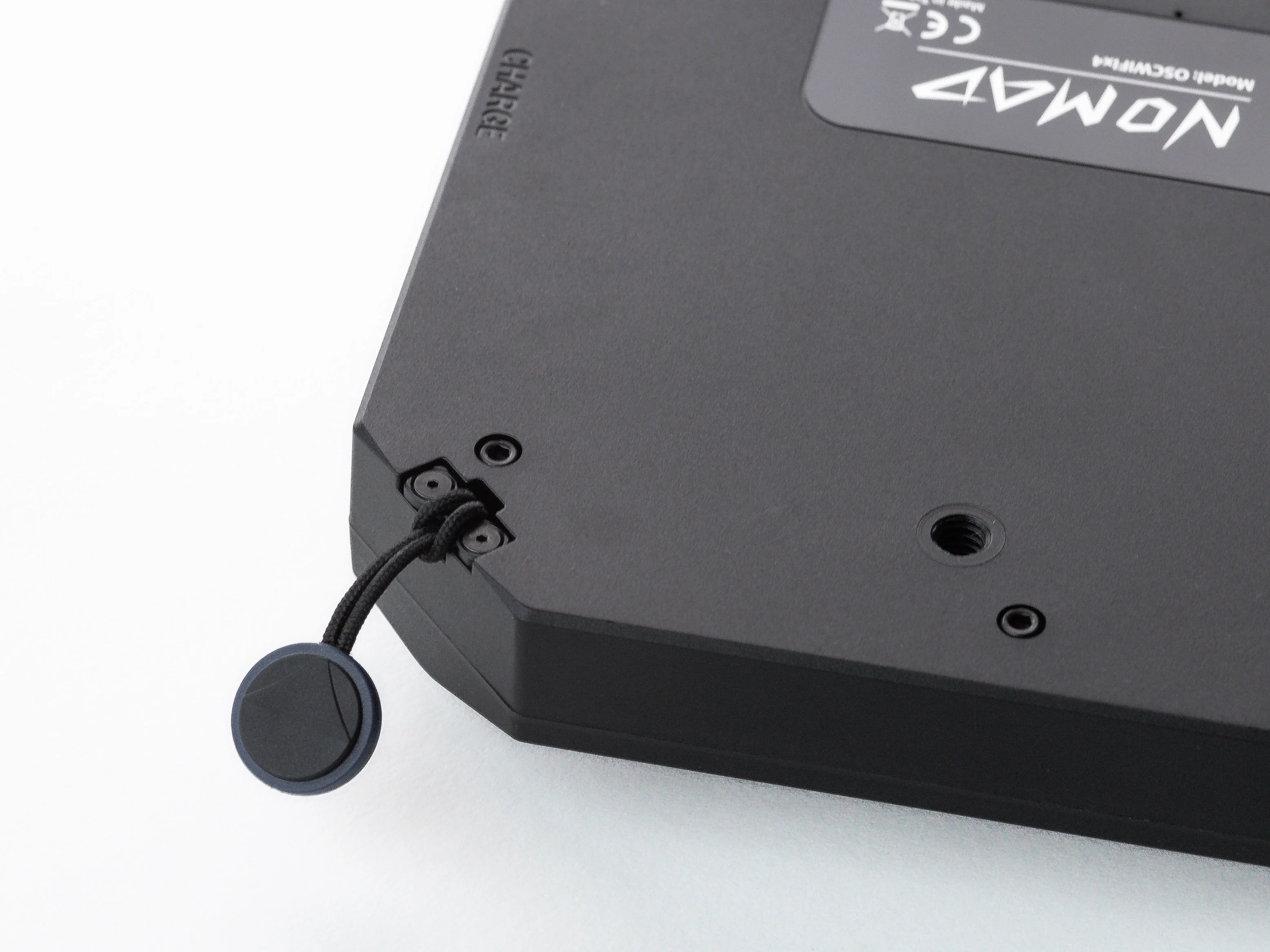
The Oscium Nomad includes three anchor loops, and there are three attachment points on the Oscium Nomad to attach them to. This provides two (maybe more) ways to wear the Oscium Nomad.

<table data-view="cards"><thead><tr><th></th><th></th></tr></thead><tbody><tr><td><strong>Chest Worn</strong></td><td>Looking at the front of the Oscium Nomad, this uses the attachment points at 2 and 7 o'clock.</td></tr><tr><td><strong>Side Worn</strong></td><td>Looking at the front of the Oscium Nomad, this uses the attachment points at 10 and 2 o'clock.</td></tr></tbody></table>

{% hint style="info" %}
The anchor loops are by [Peak Design](https://www.peakdesign.com/) who produce various attachment options should you need a replacement or wish for a different mounting style
{% endhint %}

1. Poke the anchor loop underneath the attachment point.<br>

   <div align="left"><figure><img src="https://1547340717-files.gitbook.io/~/files/v0/b/gitbook-x-prod.appspot.com/o/spaces%2FzUQ3TfKTYBeb6nf9W8Hv%2Fuploads%2FxeRUE3aXIZV2XqX1HBuc%2Fpull-anchor-loop.webp?alt=media&#x26;token=86d9a41a-03e1-4e9e-bde6-0483402f4007" alt="" width="375"><figcaption></figcaption></figure></div>

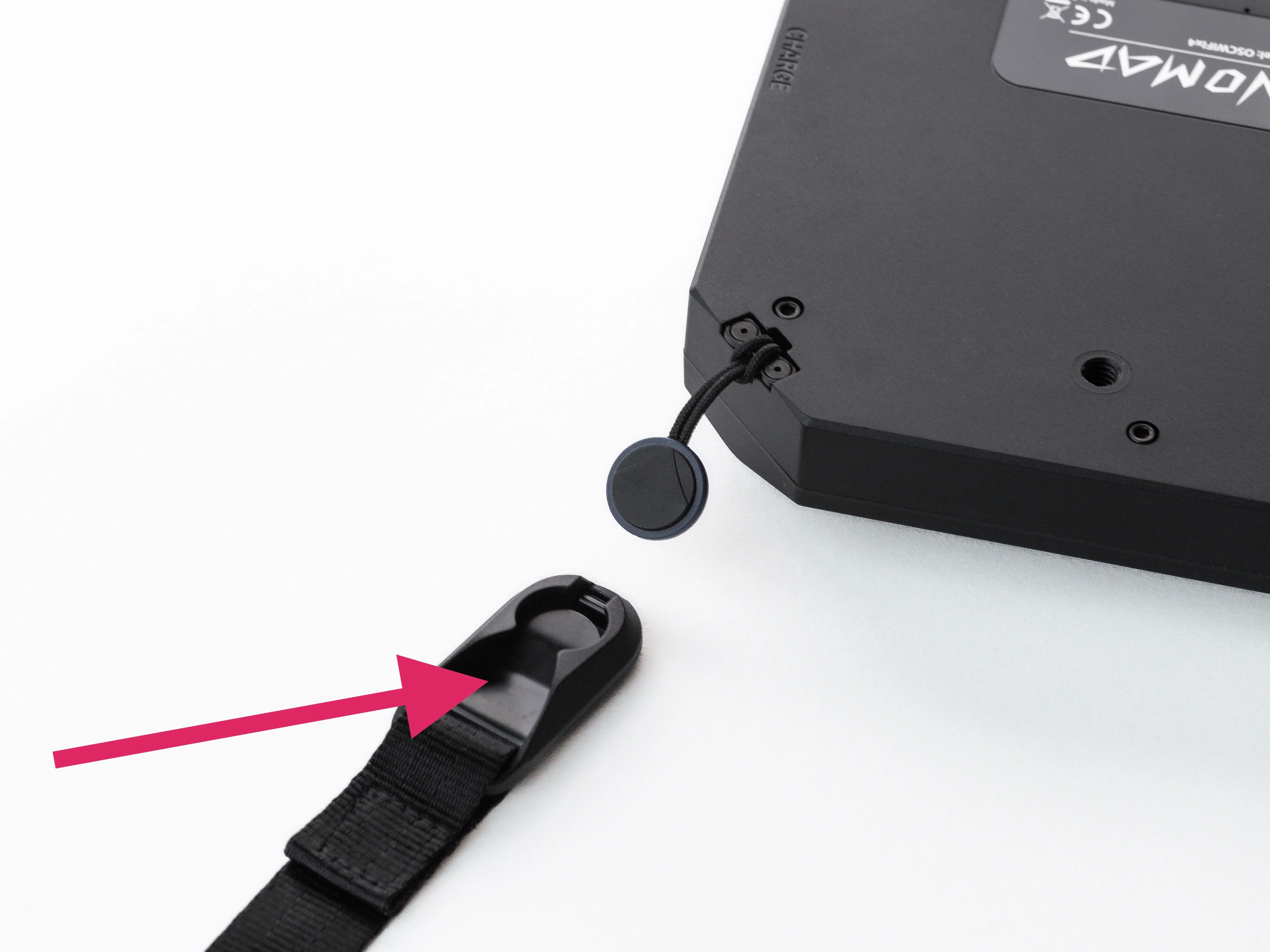
2. Poke the anchor through the loop, and pull it snugly against the attachment point.<br>

   <div align="left"><figure><img src="https://1547340717-files.gitbook.io/~/files/v0/b/gitbook-x-prod.appspot.com/o/spaces%2FzUQ3TfKTYBeb6nf9W8Hv%2Fuploads%2FvY0PgTbvSbrX2IENJZCs%2Fpull-loop.webp?alt=media&#x26;token=238f1535-5d7b-4d17-a9ef-7a2036018684" alt="" width="375"><figcaption></figcaption></figure></div>

3. Place the circular part of the anchor into the strap.<br>

   <div align="left"><figure><img src="https://1547340717-files.gitbook.io/~/files/v0/b/gitbook-x-prod.appspot.com/o/spaces%2FzUQ3TfKTYBeb6nf9W8Hv%2Fuploads%2FPHvuoBuZnvcC1hHRh4Q0%2Fanchor-in-strap.webp?alt=media&#x26;token=3531ed54-a185-4776-8828-e6658d473d0d" alt="" width="375"><figcaption></figcaption></figure></div>

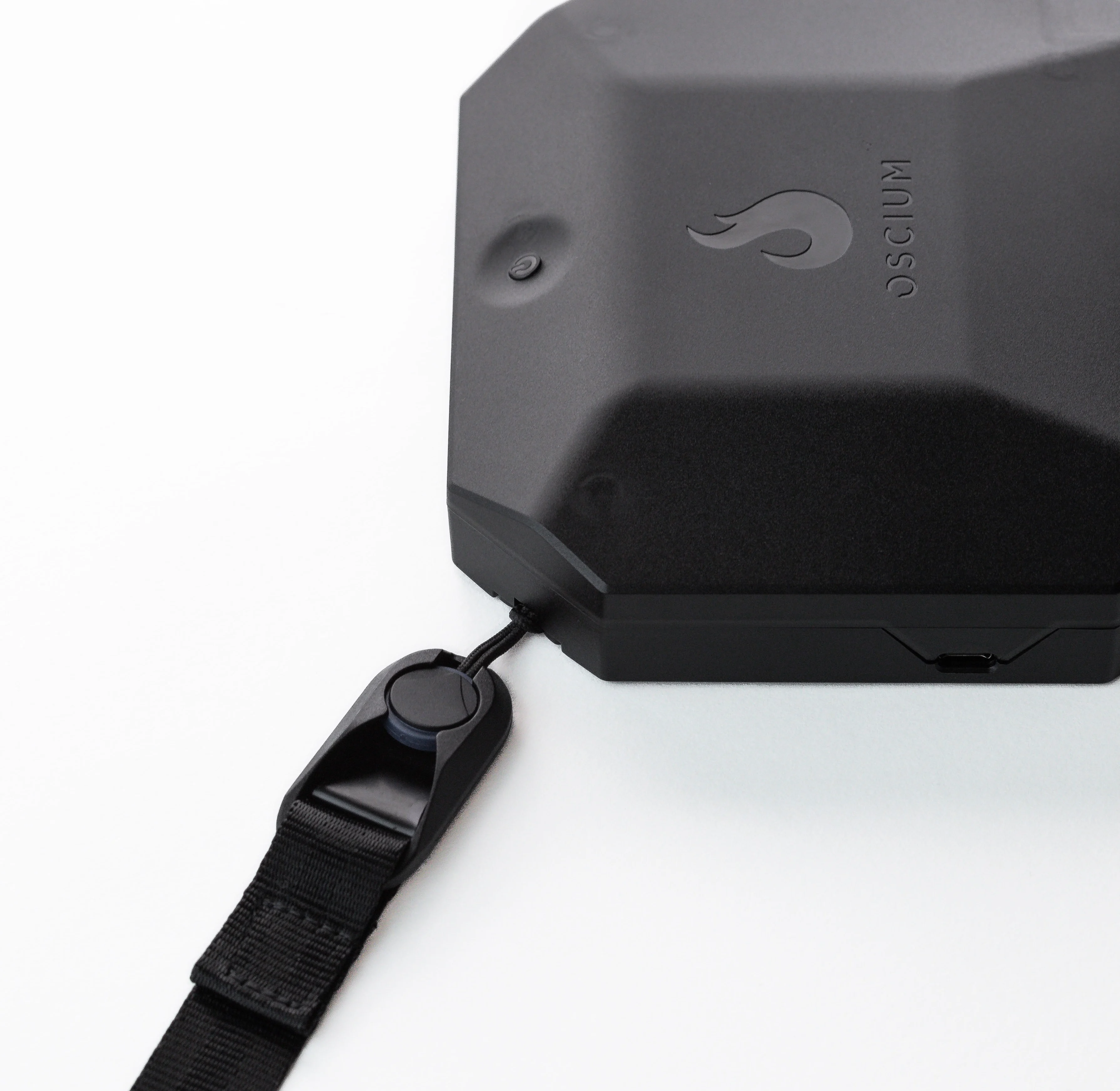
4. Pull the strap away from the Oscium Nomad, which will click the anchor into place in the strap.<br>

   <div align="left"><figure><img src="https://1547340717-files.gitbook.io/~/files/v0/b/gitbook-x-prod.appspot.com/o/spaces%2FzUQ3TfKTYBeb6nf9W8Hv%2Fuploads%2FDiSHvqUVEYH6TaaziihJ%2Fpull-strap.webp?alt=media&#x26;token=c26e87d7-27d6-41d9-b644-89f751c9dd2f" alt="" width="375"><figcaption></figcaption></figure></div>

5. Repeat for the other end of the strap on the desired anchor point.

### Charging

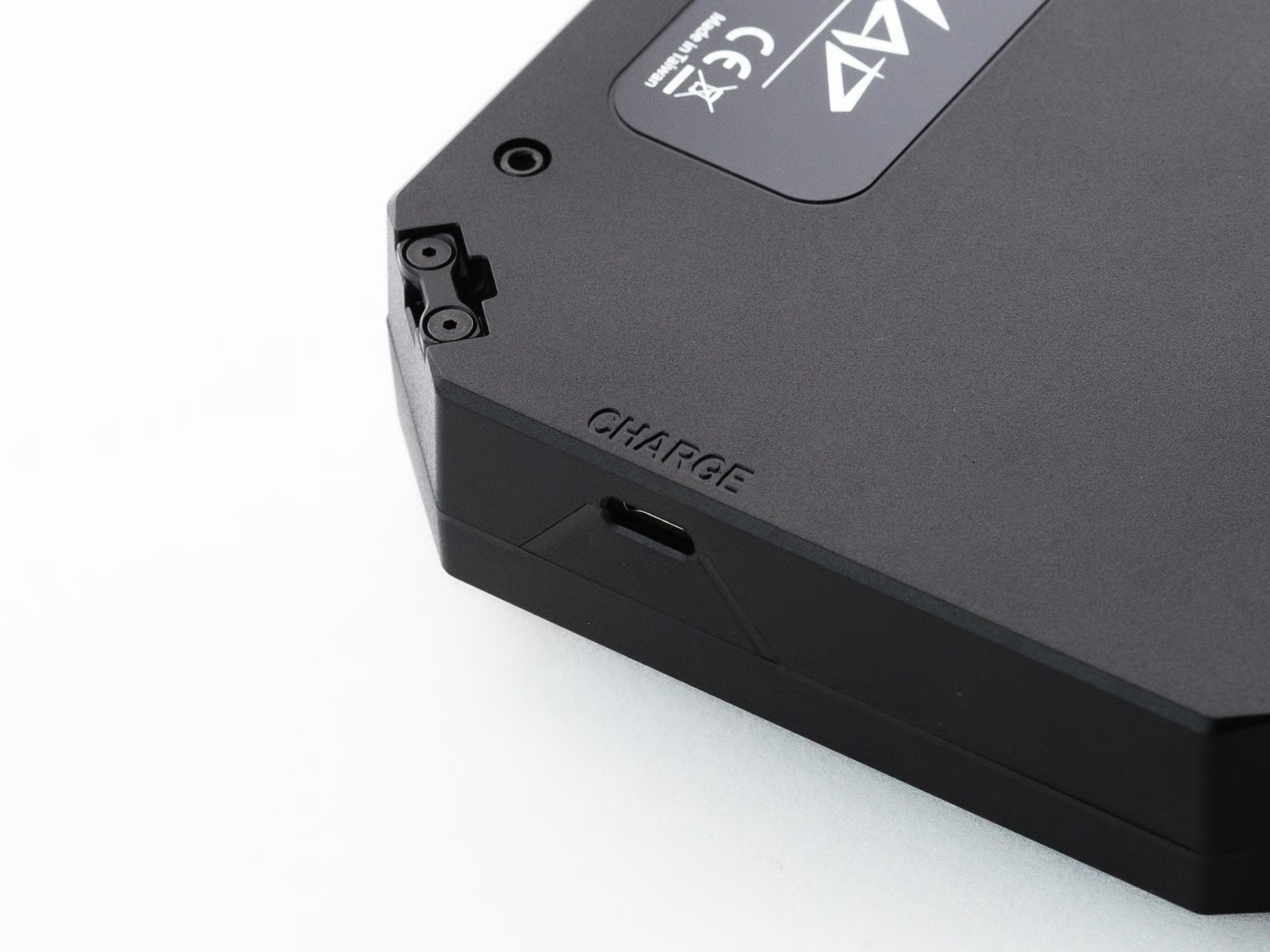
To charge the Oscium Nomad, connect it to either a standard a USB-C Power Delivery charger or standard USB port via the **Charge** port.

<div align="left"><figure><img src="https://1547340717-files.gitbook.io/~/files/v0/b/gitbook-x-prod.appspot.com/o/spaces%2FzUQ3TfKTYBeb6nf9W8Hv%2Fuploads%2FKcuJUajUtZi6vT1lTlGo%2Fcharge-port.avif?alt=media&#x26;token=427b2798-46cd-47b1-ae31-aa0e062071cf" alt="" width="375"><figcaption></figcaption></figure></div>

{% hint style="info" %}
You can charge the Oscium Nomad with a non-Power Delivery charger (for example, with a USB-A to USB-C cable), but it will charge very slowly.
{% endhint %}

With a Power Delivery charging source, the Oscium Nomad will rapidly charge from 0 to 80 percent. After 80 percent, it will charge less quickly.

{% hint style="success" %}
If you need to survey all day, plug the Oscium Nomad into a Power Delivery charger during your lunch break to get several more hours of survey time.
{% endhint %}

A blue LED next to the charge port tells the charging status.

<table><thead><tr><th width="100.04547119140625">LED</th><th width="229.8558349609375">Description</th><th>Charging Status</th></tr></thead><tbody><tr><td>🔵⚪</td><td>Single blue blink</td><td>Charging slowly</td></tr><tr><td>🔵🔵⚪</td><td>Two blue blinks</td><td>Charging quickly (USB Power Delivery)</td></tr><tr><td>🔵</td><td>Continuously glows blue</td><td>Fully charged</td></tr><tr><td>🔵⚪</td><td>Slow fading blue blinks</td><td>Recovering from a deeply discharged state</td></tr></tbody></table>

To view the current battery state, press the power button. The colored LED next to the charging port shows the battery state.

<table><thead><tr><th width="100.2598876953125">LED</th><th width="229.97650146484375">Description</th><th>Battery State</th></tr></thead><tbody><tr><td>🟢⚪</td><td>Green LED glows</td><td>Fully charged, or nearly fully charged</td></tr><tr><td>🟡⚪</td><td>Yellow/orange LED glows</td><td>Medium charge</td></tr><tr><td>🔴⚪</td><td>Red LED glows</td><td>Discharged, or nearly discharged</td></tr></tbody></table>

### Connecting to Hamina Onsite

#### iPhones and iPads with a USB-C Port

Connect one end of the included USB-C cable to the iPhone/iPad, and connect the other end to the **Data** port on the Oscium Nomad.

<div align="left"><figure><img src="https://1547340717-files.gitbook.io/~/files/v0/b/gitbook-x-prod.appspot.com/o/spaces%2FzUQ3TfKTYBeb6nf9W8Hv%2Fuploads%2FBNnrlnMtuhcL93GZnLKB%2Fdata-port.webp?alt=media&#x26;token=7e8766fc-696a-4136-bf0a-c60493e6e628" alt="" width="375"><figcaption></figcaption></figure></div>

#### iPhones and iPads with a Lightning Port

{% hint style="warning" %}
We recommend using an iPhone or iPad with a USB-C connector due to connectivity and inconsistency issues we've seen with the Lightning connector.
{% endhint %}

To connect the Oscium Nomad to a Lightning iPhone or iPad, an adapter that contains special circuitry that puts the iPhone/iPad in USB host mode is required. For iPhones/iPads with a Lightning Port, you'll need:

1. An [Apple Lightning to USB 3 Camera Adapter](https://www.apple.com/shop/product/MX5J3AM/A/lightning-to-usb-3-camera-adapter), which connects to iPhone or iPad.
2. The included USB-A to USB-C cable, which connects from the adapter to the Data port on the Nomad.

#### Other Lightning Adapters and Cables

There are other adapters and cables available that can perform the same function as the Apple Lightning to USB Camera Adapter.

{% hint style="warning" %}
Some of these adapters look like normal cables, but internally they are very different from a standard Lightning cable that you would use to charge your iPhone or iPad.
{% endhint %}

These cables/adapters are known to work with the Oscium Nomad:

* [Apple Lightning to USB 3 Camera Adapter](https://www.apple.com/shop/product/MX5J3AM/A/lightning-to-usb-3-camera-adapter) - The official adapter from Apple, which adapts to USB-A.
* [Lightning to USB-C OTG Pro Cable](https://www.amazon.com/dp/B09Q2MQMQF) - Lightning on one end, and USB-C on the other. While it looks like a normal Lightning to USB-C cable, this has the special circuitry.
* [IVSHOWCO Lightning to USB Camera Adapter](https://www.amazon.com/dp/B09VGCYN3R) - Identical in function to the official Apple Lightning to USB Camera Adapter from Apple, but at a lower cost. Adapts to USB-A.

### Powering on the Oscium Nomad <a href="#powering-on-the-oscium-nomad" id="powering-on-the-oscium-nomad"></a>

1. Hold down the power button until the power LED turns on.
2. Connect the Oscium Nomad to your iPhone, iPad, or Apple Silicon MacBook.
3. In Hamina Onsite, tap the **gear** icon in the upper right to enter Settings.
4. Choose Nomad.
5. Check the connection status:
   1. Searching - Hamina Onsite hasn't found the Nomad.
   2. Connecting - Hamina Onsite is able to ping the Nomad, and is trying to connect.
   3. Connected - Hamina Onsite has successfully connected to the Nomad.

{% hint style="info" %}
If more than 60 seconds pass without Hamina Onsite detecting the Oscium Nomad, then consult the troubleshooting guide below.
{% endhint %}

## Measurement Behavior

Because of the large amount of time that it takes to scan all channels in 2.4 GHz, 5 GHz, and 6 GHz bands, the Oscium Nomad performs a discovery sweep, in which it checks all channels for access points. Channels are then marked as occupied or unoccupied. On subsequent sweeps, it skips unoccupied channels, so it can gather as much survey data as possible. Periodically, the Oscium Nomad will perform another discovery sweep to refresh the occupied channel list.

RNRs (Reduced Neighbor Reports) from 2.4 and 5 GHz radios are used to inform the occupied channel list in 6 GHz. If a 6 GHz radio isn't on a PSC (Primary Scan Channel), and if it is not announced in an RNR (Reduced Neighbor Report), the Oscium Nomad will still discover it through a normal discovery sweep, which checks every 6 GHz channel in the regulatory domain.

#### FCS Failures

If a frame fails to match the FCS (Frame Check Sequence), it is discarded. We do not use corrupt frames for measurements.

## Troubleshooting

### Check for Basic Connectivity

The Oscium Nomad uses a network connection over USB to communicate with Hamina Onsite, AirTool 2, and The MetaGeek App. If you are having connectivity problems, power on the Oscium Nomad and connect it to your device. Then, follow the device-specific instructions to see if the Oscium Nomad is establishing a connection with your iPhone, iPad, Apple Silicon MacBook, or Windows PC.

#### iPhone and iPad

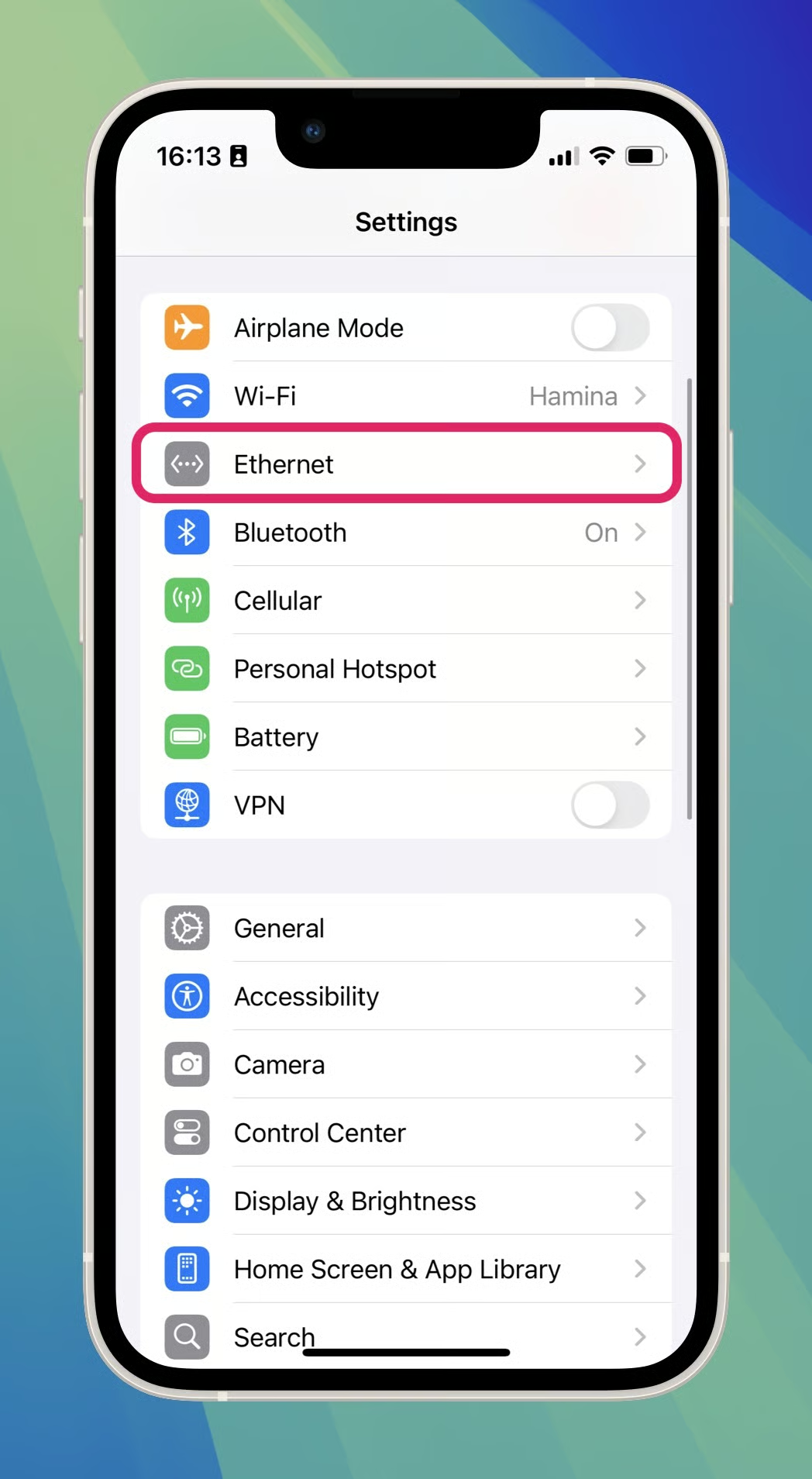
On iPhone and iPad, you can check the **Settings** app for the **Ethernet** line item. If **Ethernet** appears on the list, the Oscium Nomad has successfully established a network connection to the iPhone or iPad. See [#check-app-permissions](#check-app-permissions "mention") next.

If you don't see **Ethernet** on the list, see [#troubleshoot-basic-connectivity](#troubleshoot-basic-connectivity "mention") next.

<div align="left"><figure><img src="https://1547340717-files.gitbook.io/~/files/v0/b/gitbook-x-prod.appspot.com/o/spaces%2FzUQ3TfKTYBeb6nf9W8Hv%2Fuploads%2FiC5Q9UoEY2EcnAT6KyYI%2Fiphone-ethernet.avif?alt=media&#x26;token=3e78b68b-997a-48ba-8a56-1730ac4c68fa" alt="" width="375"><figcaption></figcaption></figure></div>

#### Apple Silicon MacBook

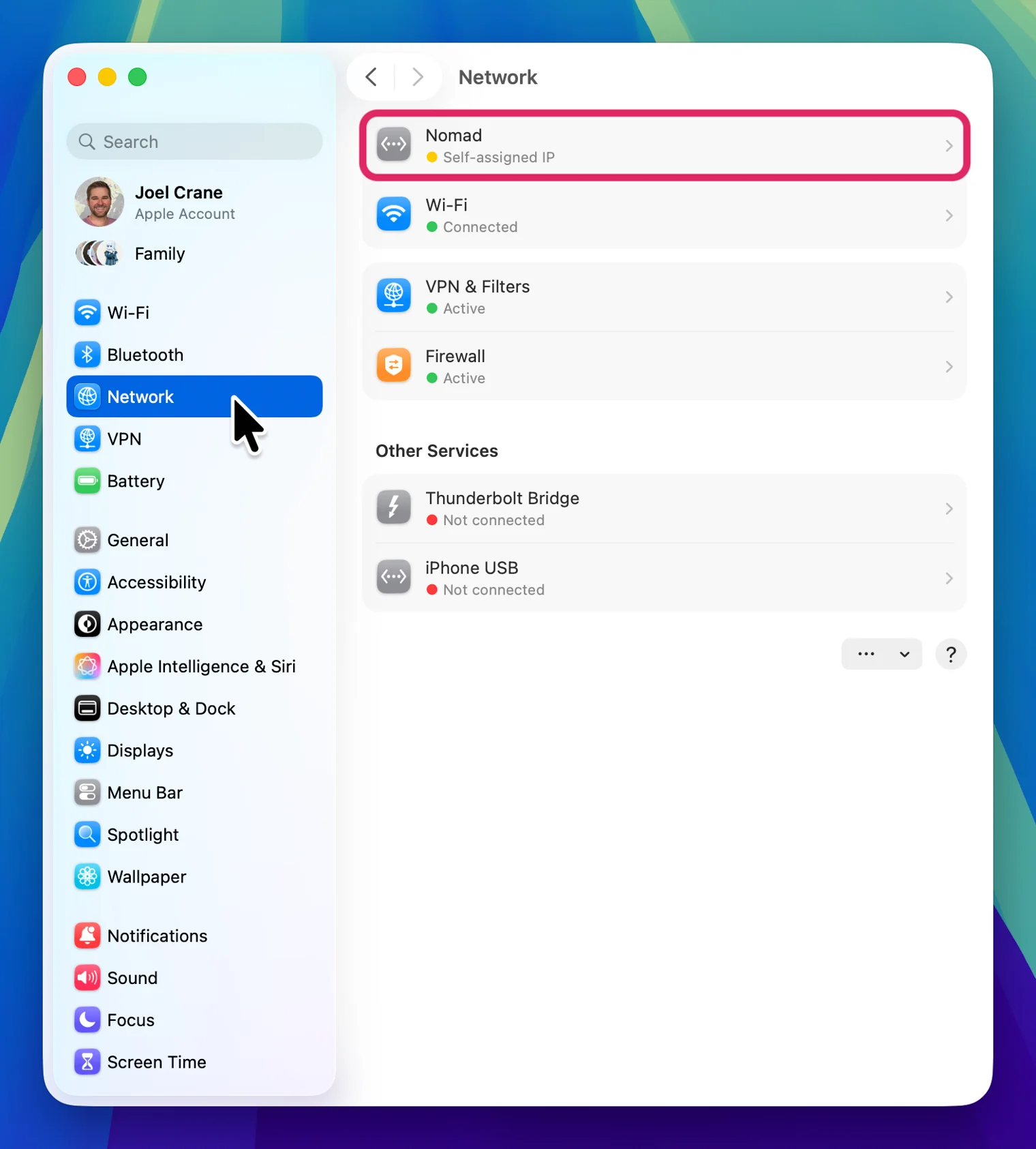
On macOS, you can check the **System Settings** app in the **Network** section for the **Nomad** line item. If **Nomad** appears on the list, the Oscium Nomad has successfully established a network connection to the iPhone or iPad. See [#check-app-permissions](#check-app-permissions "mention") next.\
\
If you don't see **Nomad** on the list, see [#troubleshoot-basic-connectivity](#troubleshoot-basic-connectivity "mention") next.

<div align="left"><figure><img src="https://1547340717-files.gitbook.io/~/files/v0/b/gitbook-x-prod.appspot.com/o/spaces%2FzUQ3TfKTYBeb6nf9W8Hv%2Fuploads%2FPev25ZqTxHX0djAsFMXP%2Fmacbook-ethernet.webp?alt=media&#x26;token=a369f7bb-d594-4809-ba71-03626b01ca60" alt="" width="563"><figcaption></figcaption></figure></div>

#### Windows

{% hint style="info" %}
Hamina Onsite isn't supported by Windows, but Windows can be useful to assist in troubleshooting the Oscium Nomad, cables, and adapters to find the source of the problem. The Oscium Nomad also works with the MetaGeek App for Windows.
{% endhint %}

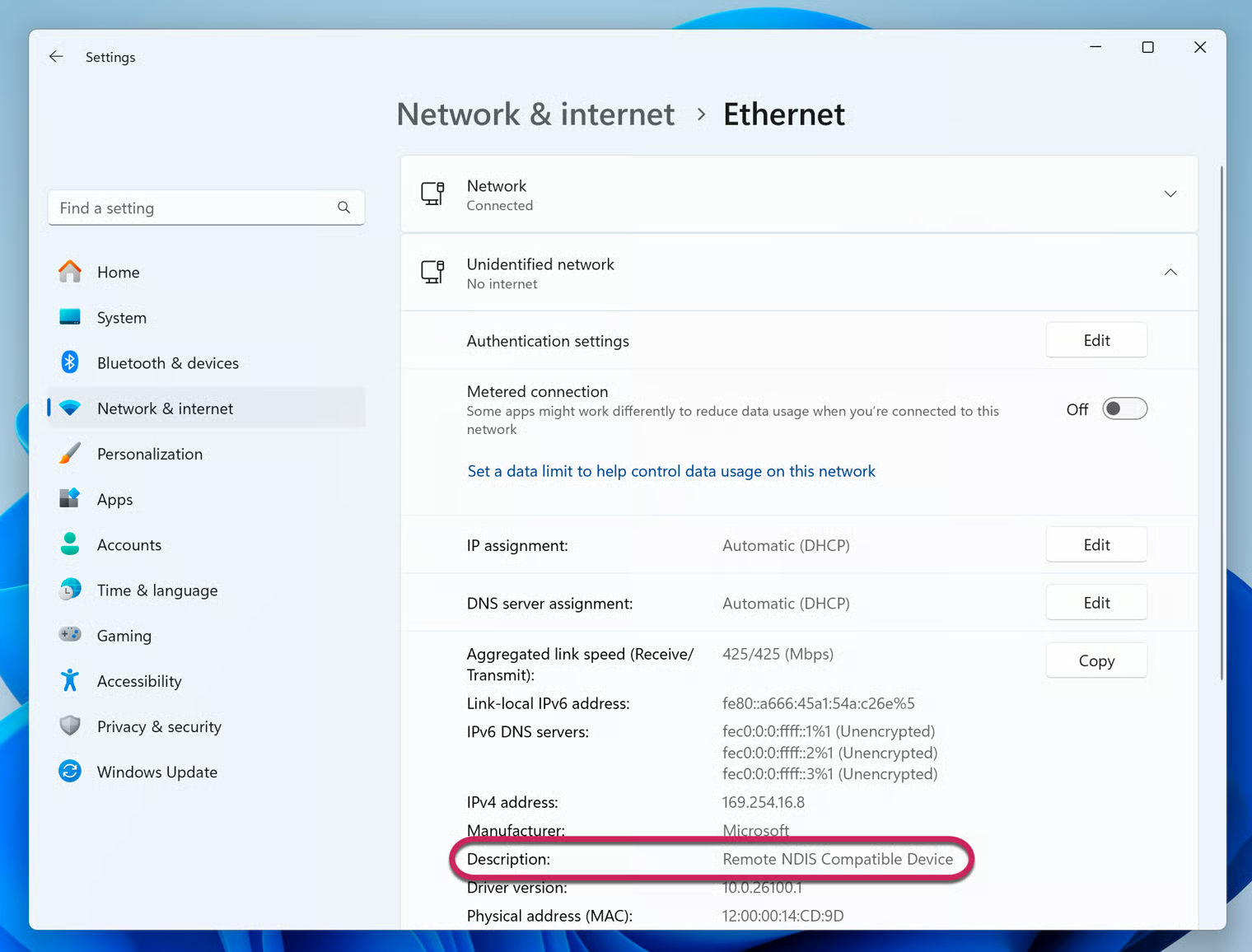
On Windows, you can check **Settings** > **Network & Internet** in the network connections list for the **Unidentified network** line item. The **Description** field should state that it is a **Remote NDIS Compatible Device**.

If an **Unidentified network** connection does not appear, power cycle the Oscium Nomad and try again.

<figure><img src="https://1547340717-files.gitbook.io/~/files/v0/b/gitbook-x-prod.appspot.com/o/spaces%2FzUQ3TfKTYBeb6nf9W8Hv%2Fuploads%2FieYorgzU4mAC7Oj5i0p3%2Fwindows-connectivity.avif?alt=media&#x26;token=7710b41c-7800-4b40-a1c4-6e9e732257c4" alt=""><figcaption></figcaption></figure>

You can further test for connectivity with the Oscium Nomad in the **Command Prompt**:

```bash
ping 169.254.16.53
```

If you can't ping the Oscium Nomad, see [#troubleshoot-basic-connectivity](#troubleshoot-basic-connectivity "mention") next.

### Check App Permissions

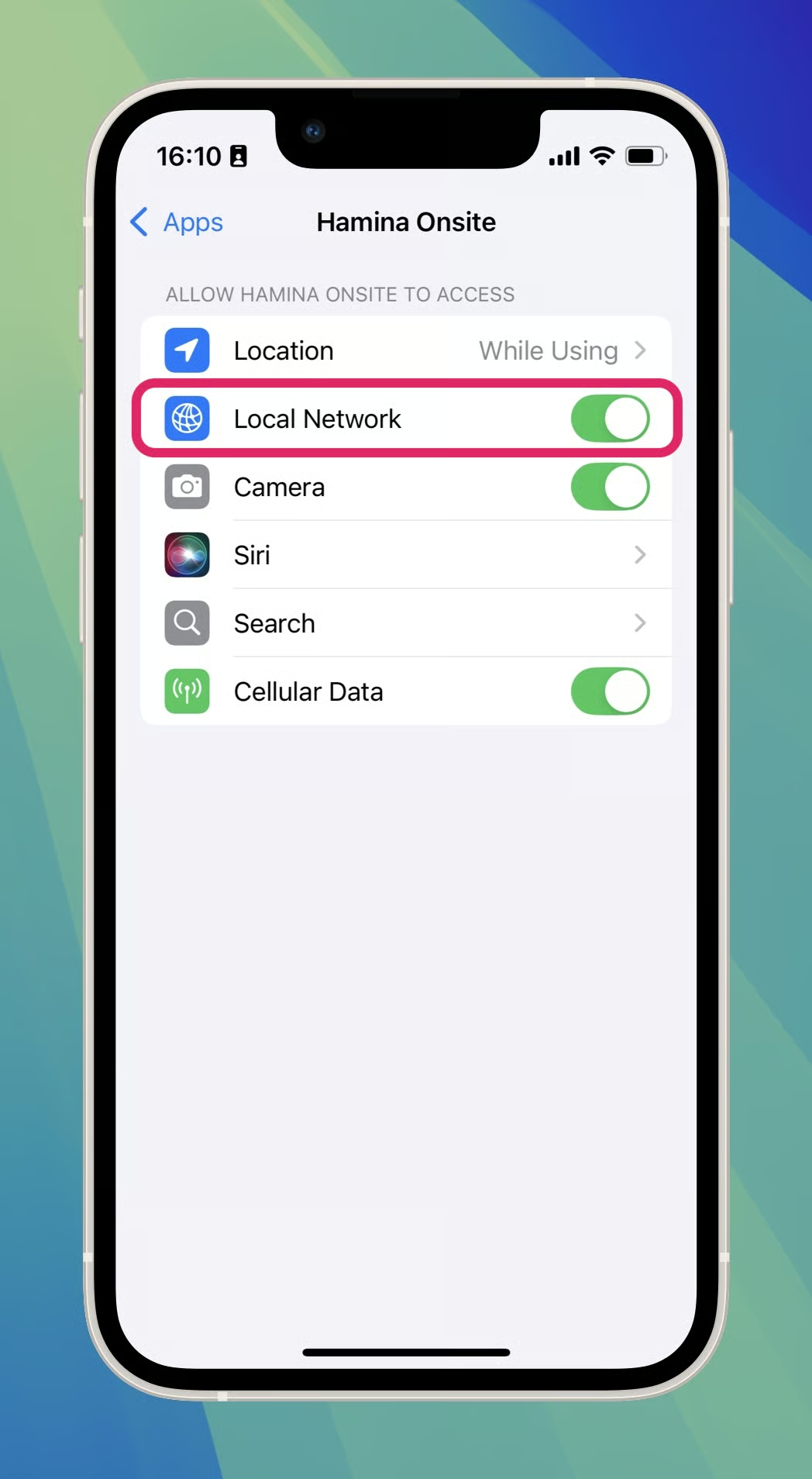
Hamina Onsite uses a network connection over USB to communicate with the Oscium Nomad. If Hamina Onsite doesn't have permission to access the Local Network, it won't be able to communicate with the Oscium Nomad.

To check for this permission:

1. Open the **Settings** app in iOS or iPadOS.
2. Scroll down to the bottom, and select **Apps**.
3. Find **Hamina Onsite** on the list of apps.
4. Make sure **Local Network** is enabled.

<div align="left"><figure><img src="https://1547340717-files.gitbook.io/~/files/v0/b/gitbook-x-prod.appspot.com/o/spaces%2FzUQ3TfKTYBeb6nf9W8Hv%2Fuploads%2FOVUk74dwW9d7zu4tC9MW%2Fiphone-connectivity.avif?alt=media&#x26;token=a19b3d7e-5dc5-4970-ab1d-a1bbc87941d1" alt="" width="375"><figcaption></figcaption></figure></div>

### Troubleshoot Basic Connectivity

If you can't establish basic connectivity between the Oscium Nomad and your iPhone, iPad, MacBook, or Windows PC, or if the Oscium Nomad regularly disconnects during site surveys, carefully check each of these steps:

1. Make sure the Oscium Nomad is powered on, indicated by a glowing blue LED near the power button.
2. Make sure the cable is connected to the **Data** port on the Oscium Nomad, not the **Charging** port.
3. Try a different cable. *<mark style="color:blue;background-color:blue;">Note from Joel: Cables that work fine on the desk will sometimes intermittently fail while surveying.</mark>*
4. **If using a Lightning iPhone or iPad**, make sure you're using the correct cable or adapter. A standard Lightning cable will not work. See [#iphones-and-ipads-with-a-lightning-port](#iphones-and-ipads-with-a-lightning-port "mention") for details.
5. **If using a Lightning iPhone or iPad**, make sure there isn't dust or lint in the Lightning port. *<mark style="color:blue;background-color:blue;">Note from Joel: I have to use a toothpick to clean the pocket lint out of my iPhone 13 mini about once a month. Even if it's still charging just fine, data often stops working first.</mark>*

If you have carefully tried all of these steps, [contact support@hamina.com](https://www.hamina.com/contact) for assistance.

## Specifications

* Four Wi-Fi 6E adapters with 2 spatial streams each
* USB-C Power Delivery charging port
* USB-C Data port
* USB-A Spectrum port
* Built-in 7500 mAh (27.75 Wh) battery, with up to four hours of survey time
* 14 cm x 12.5 cm x 3.5 cm (5.5" x 5" x 1.4")
* 415 grams (14.75 oz)