> For the complete documentation index, see [llms.txt](https://docs.hamina.com/hamina/llms.txt). Markdown versions of documentation pages are available by appending `.md` to page URLs; this page is available as [Markdown](https://docs.hamina.com/hamina/live/introduction.md).
# Introduction
Get an overview of project importing, exporting, and the Live View in Hamina Network Planner.
Hamina Network Planner and Planner Plus integrate with multiple Wi-Fi infrastructure vendors, either through API integrations or file exports to enable importing, exporting, and Live viewing of Wi-Fi networks.
### Supported Features Per Vendor
Hamina Network Planner leverages APIs from infrastructures vendors for Import, Export, and the Live View.
If a specific feature is missing, it might be because the network infrastructure vendor doesn't offer enough API coverage to implement the feature, or simply because Hamina Network Planner doesn't have that feature implemented yet.
{% hint style="info" %} Importing from vendor supported
Exporting to vendor supported
\* Exported APs are placeholder icons only in the vendor system, and are not tied to an inventory AP MAC address or serial number.
{% endhint %}
Map image
Map name
Map scale
Floor height
GPS coordinates
Walls
Attenuating objects
Access points
Planned APs
AP placement
AP orientation
AP height
Radios
Live SSID selection
Tx powers
Clients
Infra devices
Switch ports
Env learning (AP-AP)
Throughput test
Arista
-
-
-
-
-
-
-
-
-
Aruba
-
-
-
-
-
-
-
-
-
Cisco Catalyst
-
-
-
*
-
-
-
-
Cisco Spaces
-
-
-
*
-
-
-
-
-
-
-
-
Extreme
-
-
-
-
-
-
-
-
-
Juniper
-
-
-
-
-
Meraki
-
-
-
-
-
-
-
-
-
-
Orb
-
-
-
-
-
-
-
-
-
-
-
-
-
-
-
-
-
-
Ruckus
-
-
-
-
-
-
-
-
-
## Import
The Import function enables Hamina to import a wireless network, including the map, scale, and access points. Importing a network is useful for viewing the current network configuration, experimenting with changes to the network, or performing planning for new access points or major configuration changes.
{% hint style="success" %}
For supported vendors, importing a network to Hamina Network Planner Plus also automatically enables the **Live View** in the project.
{% endhint %}
{% hint style="info" %}
In the case of importing an OpenIntent file, Hamina will import a network design, either exported by Hamina Network Planner or another design tool. See OpenIntent for details.
{% endhint %}
To import a project into Hamina Network Planner:
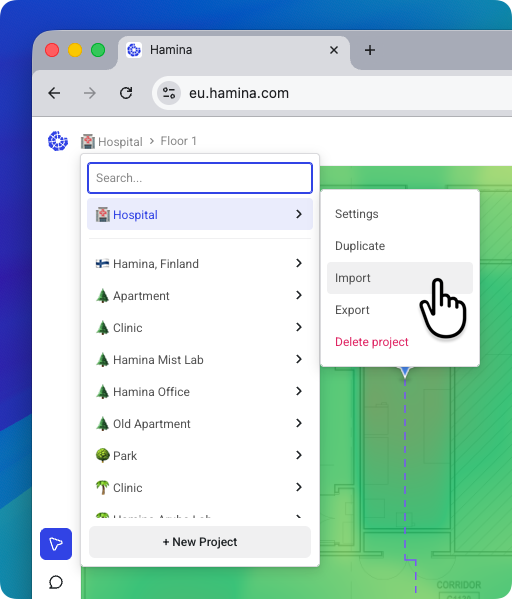
1. Select the **Projects Menu**, point to the project, and select **Import**.
2. The **Import** window will appear, where you can select a source to import from. See the vendor and source-specific pages in the Import, Export, and Live View section for details.
{% hint style="warning" %}
In some cases, vendor databases do not differentiate between internal and external antenna models. In these cases, Hamina Network Planner always maps to the internal antenna model.
{% endhint %}
## Export
The Export function enables Hamina to export a wireless network design, including the map, scale, and access points. Exporting a network is useful for deploying a network design directly to infrastructure, without having to repeat any mapping or placement work outside of Hamina. It is also useful for remediation or making changes, as subsequent exports can move or replace access points.
To export a project from Hamina Network Planner:
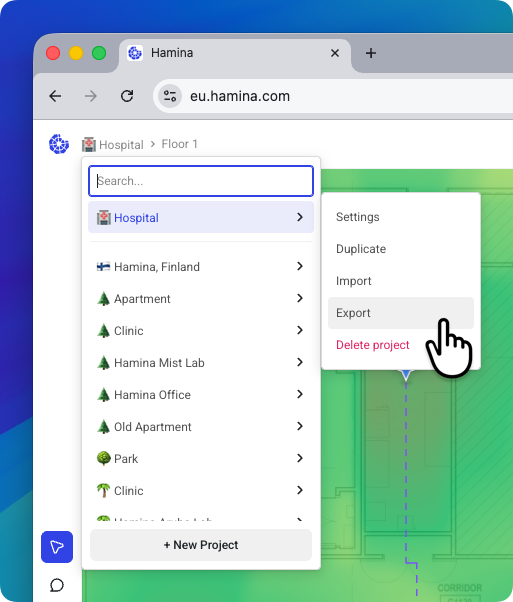
1. Select the **Projects Menu**, point to the project, and select **Export**.
2. The **Export** window will appear, where you can select a destination to export to. See the vendor and source-specific pages in the Import, Export, and Live View section for details.
### Export Notes
#### Map Rotation
Maps rotated in Hamina Network Planner won't be rotated in the vendor infrastructure. If you need to rotate the map and export to vendor infrastructure, we recommend rotating the image in an image editor before uploading it to Hamina.
The one exception to this is when exporting to Meraki, which will use GPS points to place, rotate, and scale the map on the globe in the Meraki Dashboard.
## Live View
The **Live View** imports the wireless network into Hamina Network Planner to enable live monitoring and troubleshooting. It pulls information from the wireless network infrastructure to create heatmaps, populate AP details, and give information about clients in real-time, or very close to real-time.
To learn more, see [Live View](/hamina/live/live-view.md).
---
# Agent Instructions
This documentation is published with GitBook. GitBook is the documentation platform designed so that both humans and AI agents can read, navigate, and reason over technical content effectively. Learn more at gitbook.com.
## Querying This Documentation
If you need additional information that is not directly available in this page, you can query the documentation by asking a question.
Perform an HTTP GET request on the following URL with the `ask` and `goal` query parameters:
```
GET https://docs.hamina.com/hamina/live/introduction.md?ask=&goal=
```
`ask` is the immediate question: it should be specific, self-contained, and written in natural language.
`goal` is what the user is ultimately trying to achieve, the reason they need the answer. Sharing it helps GitBook give you a better, more relevant answer. A goal is most helpful when it describes the outcome the user wants rather than restating the question. For example, with `ask=how do I create an API token`, a goal like `automate deployments from our CI pipeline` lets GitBook tailor the answer to that use case.
The response will contain a direct answer to the question and relevant excerpts and sources from the documentation.
Use this mechanism when the answer is not explicitly present in the current page, you need clarification or additional context, or you want to retrieve related documentation sections.