> For the complete documentation index, see [llms.txt](https://docs.hamina.com/hamina/llms.txt). Markdown versions of documentation pages are available by appending `.md` to page URLs; this page is available as [Markdown](https://docs.hamina.com/hamina/guides/surveys-to-design.md).
# Surveys to Design
Learn how to use site survey measurements to create network designs in Hamina Network Planner.
Instead of drawing walls (either manually or automatically) in the **Simulation** view, and using that as the basis for a network design, it is possible to use the results of a site survey as the basis for the simulation. The site survey data can be gathered with Hamina Onsite, either with a Hamina Clip or Oscium Nomad.
The site survey data is used to create a map of attenuation, or areas on the map that block or reduce Wi-Fi signals. If available, the attenuation map is augmented by walls that are automatically traced on the floorplan.
Attenuation between floors comes from the **Align Floors** tool. Since the **Simulation prediction mode** is configured on a per map/floor basis, you can mix and match modes in the project (such as **Walls + Objects** on one floor, and **Env Learn (Survey)** on another).
## Using a Survey to Create a Simulation
1. Perform a site survey using Hamina Onsite. This can either be for an existing network on the site, or by using an AP on a stick method. When performing the survey, it's a good idea to survey both sides of most walls and obstacles, and to [use the correct surveying technique](https://docs.hamina.com/onsite/basics/site-surveys).
2. Open the project in Hamina Network Planner.
3. On large projects, you will see a progress indicator that shows that the survey results are being used to teach the simulation. On small projects, this can happen so quickly that you will not see a progress indicator.
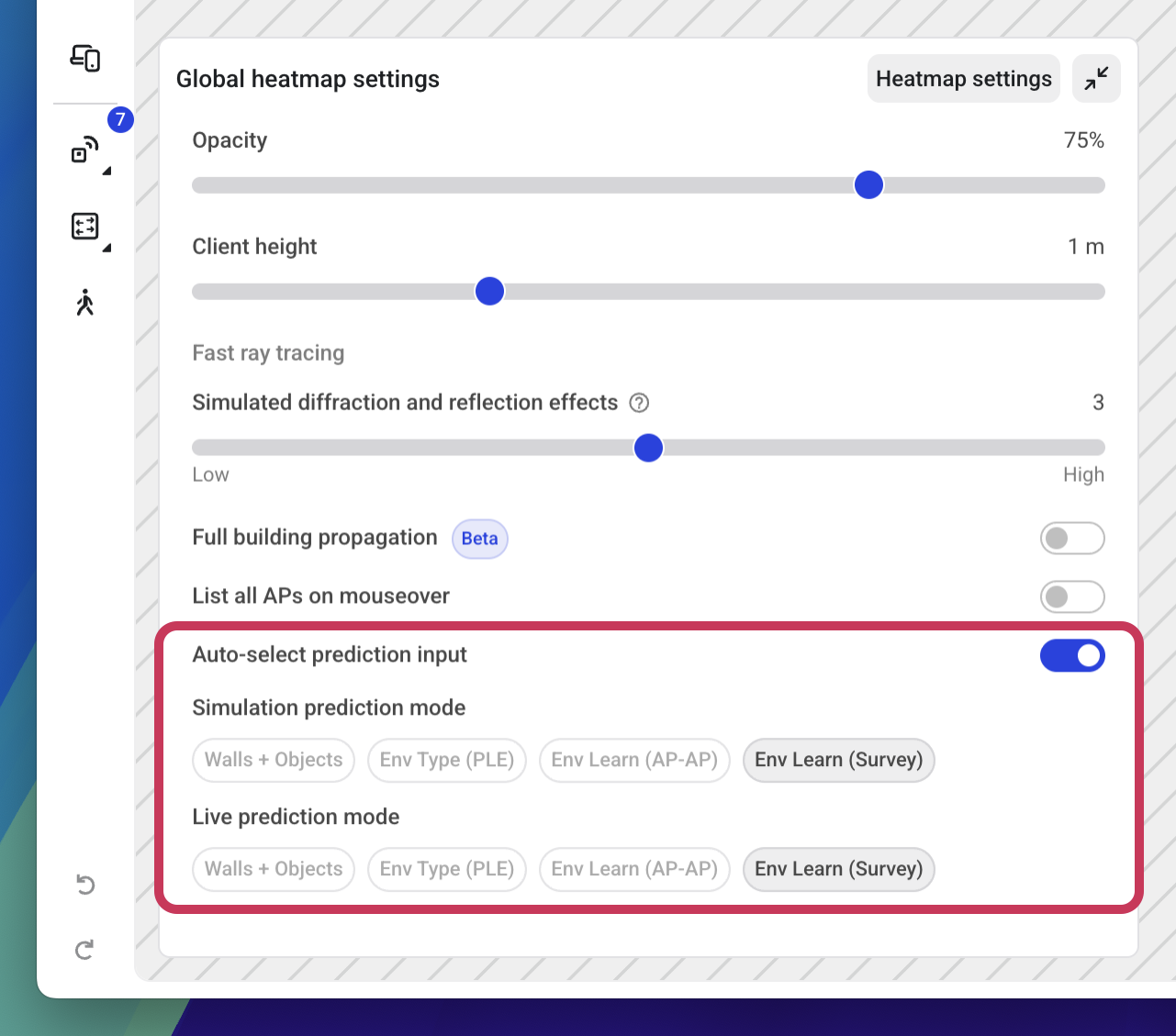
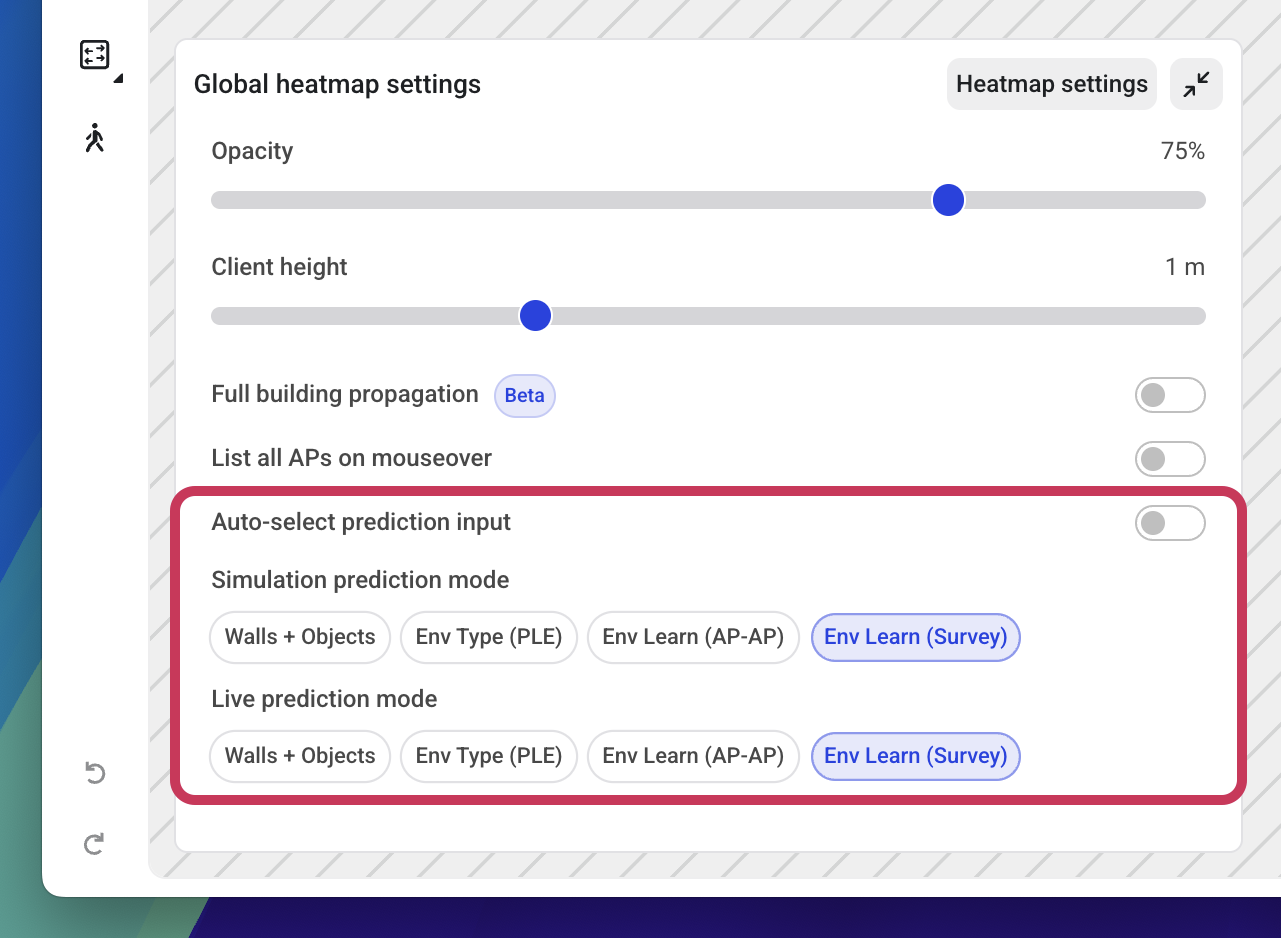
4. By default, Hamina Network Planner will automatically choose the best prediction mode, based on what data is available in the project. You can view which prediction model Hamina has selected in the **Global heatmap settings** popover:
\
To force Hamina Network Planner to use Environment Learning (with Site Surveys), disable **Auto-select prediction input**, and select **Env Learn (Survey)** for simulations.
5. With the **Simulation prediction mode** set to **Env Learn (Survey)**, you can now perform a network design in the **Simulation** view using the site survey results as the basis for the simulation.
---
# Agent Instructions
This documentation is published with GitBook. GitBook is the documentation platform designed so that both humans and AI agents can read, navigate, and reason over technical content effectively. Learn more at gitbook.com.
## Querying This Documentation
If you need additional information that is not directly available in this page, you can query the documentation by asking a question.
Perform an HTTP GET request on the following URL with the `ask` and `goal` query parameters:
```
GET https://docs.hamina.com/hamina/guides/surveys-to-design.md?ask=&goal=
```
`ask` is the immediate question: it should be specific, self-contained, and written in natural language.
`goal` is what the user is ultimately trying to achieve, the reason they need the answer. Sharing it helps GitBook give you a better, more relevant answer. A goal is most helpful when it describes the outcome the user wants rather than restating the question. For example, with `ask=how do I create an API token`, a goal like `automate deployments from our CI pipeline` lets GitBook tailor the answer to that use case.
The response will contain a direct answer to the question and relevant excerpts and sources from the documentation.
Use this mechanism when the answer is not explicitly present in the current page, you need clarification or additional context, or you want to retrieve related documentation sections.